Flicktok Functional Spec V01
FlickTok Functional Spec – BCI4Kids Engineering
Project Manager: Eli Kinney-Lang
Product Owner: Anna Bourgeois
Version: 0.1 (First one, woo!)
Updated on: 2024-May-13
This is a general specification document built from some of the ideas discussed here: https://www.joelonsoftware.com/2000/10/03/painless-functional-specifications-part-2-whats-a-spec/ as well as other available online templates.
In this document, there will be notes for reference by project stakeholders. Notes will be designated using BOLD CAPITALS to indicate who the note is for. For example, for someone helping create the application and contributing to the code a note might say “TECHNICAL NOTE: XXYZZEE:” While a note for the product owner would say “USER NOTE: ZZYYXEE”.
Open questions will be tagged similarly as “OPEN ISSUE:”, indicating that this issue should be discussed between the spec designer and the product owner.
-————————————Specification Start———————————-
Overview – The application (henceforth known as the more fun name “FlickTok”) is a BCI-enabled application to “swipe” through a social media app for young kids and adults, e.g. TikTok/Instagram/Twitter/Myspace. FlickTok will rely on 3 main interacting components:
-
An EEG/BCI sensing component – This will comprise the set of systems needed just to read and record the user’s brain. This system is what sends signals to the other components.
-
An application component – This will comprise the various software systems needed for the actual system to work. These in turn are described below, but include responsibilities for:
a. Receiving brain data and processing it
b. Interacting with the social media app of choice (except Youtube Shorts…those are the worst)
c. Relaying signals to the FES device for its function execution
- An FES component – This will comprise the set of systems needed to stimulate the desired muscles for the feedback from the FES.
This spec document is not complete and represents an ongoing iterative development process. Layouts presented here are merely to illustrate functionality, but the actual look/feel should be developed overtime with input from end-users. Please add your thoughts!
Scenarios – Imagine the following scenario for using Flicktok:
Anna the (totally hypothetical) student: Anna is running a study on making BCI-FES more engaging for kids (as long as they are old enough to be on social media!). To do this, she wants to be able to quickly and easily open Flicktok for participants when they come in to the lab for the study. She wants to be able to use the application quickly without too much set-up, because the actual FES and BCI systems themselves will require a lot of work to get going. Anna gets to open a single executable software to run FlickTok, without needing to open every icon on her desktop. When FlickTok launches she is able to put in some basic information to make sure the data she wants to save is relevant and well documented. She also wants to make sure the application component is working without putting on the BCI, so she presses a button on the keyboard to flick through the social media herself to verify it works. After what seems like a couple minutes pass (6 hours in reality) she closes the application confidently knowing that any data recorded was safely saved.
OPEN QUESTION – If there is another situation/scenario you can think of (e.g. at-home use) that is critical for this release, we can outline it and discuss it here.
Non-Goals – Flicktok will not support the following features (at least not yet).
-
This version of Flicktok is not going to be optimized for use on a phone or other mobile device
-
Flicktok will be made for administration/support from at least one technical user – e.g. a clinician, student, etc. Not meant for completely independent end-user/consumer use
-
Youtube shorts. (Again, they are the worst)
-
Multiple headsets – For now, FlickTok will support 1-specific headset outlined below.
-
Customization – FlickTok will provide some limited customization, but not extensive customization options.
OPEN QUESTION – Are there other typical requests/features that are not available at this time? These might change later depending on how quickly things come together.
Project Flowchart – Let’s look at a quick flowchart to give a big picture of how FlickTok will flow together.
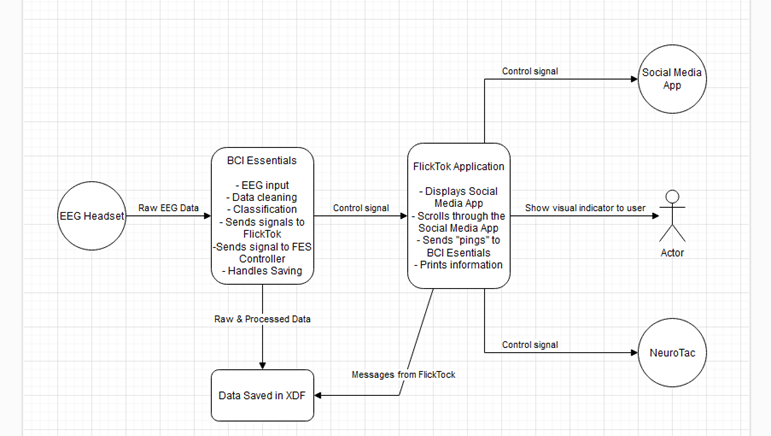
TECHNICAL NOTE: I’m not sure what the control signals will be talking through but have included them right now. Similarly, I don’t know if we want BCI Essentials to be cataloging all the messages from Flicktok for saving? Or just build in FlickTok’s own LSL Message system essentially.
Screen Specifications – Here is a rough draft of what I think each “screen” in the application could look like, including their functional name in underline (i.e. Main Menu), and a short description of what happens on that screen.
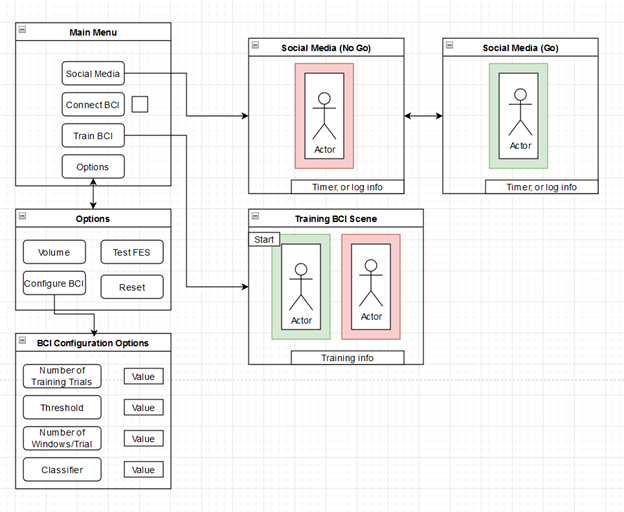
Main Menu – This is the landing screen for the application. The main menu only has 3 buttons that can be clicked on. When clicking the “Connect to BCI” button, the checkbox on the right will turn green, and the text of the box will say “Connected”. This could also be a radial button or any other way to indicate we have connected to the BCI back-end.
TECHNICAL NOTE – Do we want to have the window size be flexible?
TECHNICAL NOTE – Do we want a way to look at headset “quality”? This might not be possible but is often requested.
Options – This is a simple options menu. The user can test the FES connection from this menu with pushing the button. They will be able to reset values for the BCI system here. They will also be able to adjust specific parameters for the BCI training.
OPEN QUESTION – Do we think we actually need/want an options menu? Should this just be in the main menu?
BCI Configuration – This is a simple menu for configuring the parameters of the BCI system. This includes:
-
Total number of training “Trials” desired (i.e. one full trial is from start-to-finish for at least a 4 second period).
-
Total number of windows during each trial (i.e. the number of 2 second windows to use in training).
-
Threshold – An arbitrary measure that we are asking for the user to surpass. This could be from the ERD/ERS which would require extra computation from data, or simply from voting windows saying that activation happened or didn’t happen for a certain number of windows.
TECHNICAL NOTE – We can also do voting for activation in a row – i.e. if the system calculates 3 windows in a row that the MI was “active” according to the trained classifier, we can send a “pass” on the threshold. Could it also be confidence in classification using a posterior probability?
- Classifier – The ability to choose a different classifier for use in the system after training.
Training BCI – This is a simple training menu to practice the Motor Imagery and train the BCI Classifier using pre-loaded video(s). The video(s) will have a red box around them when the user is not meant to activate the BCI system, and a green box when they are asked to activate the system. The displayed video will be played automatically following the first 2 training trials, while the iterative classifier gains information. After these first 2 attempts, the user will need to exceed a threshold to play the video at the end of the trial. There is a button at the top that “starts” the automatic training. Training proceeds automatically and is drawn from the Options menu.
TECHNICAL NOTE – Do we want to have different videos available, or just the same one? Using one consistent video will be less work.
TECHNICAL NOTE – Would we rather have the option for automatic training be sent through the options menu as well?
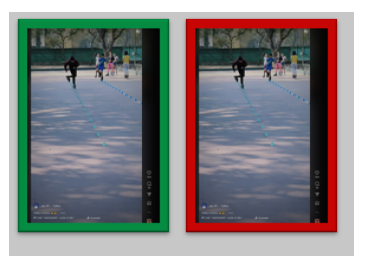
Social Media – This is the primary screen for the application, where a box surrounds the Social Media application of choice (i.e. Instagram Reels/Tiktok/whatever). The box is green when the BCI is “available” for an action to move to the next video, and red when it is “unavailable”.
Interaction Specifications – The FlickTok app will primarily be navigated by keyboard and mouse, with the exception of the Social Media screen, which will allow BCI input to move to the next video. Navigation through the app is expected to be standard, with only the one screen recording active BCI intentions. There is no plans for the moment to navigate the software with any AAC approaches (i.e. switch scanning).
Launching the Application – Upon first launching the application, the Main Menu will appear, simultaneously connecting to BCI-Essentials Python. Once the user clicks “Connect to BCI” button on the main menu, a link between Bessy Python and FlickTok will be generated, with a verification sent to update the application with a green “check mark” that everything is working fine. This will also send a control signal to the FES device to verify that it is working.
The user can then open Options screen to configure the BCI options for the system. (Optional)
The user will then have to train the BCI system using the “Train BCI” button. Once that window is open, the user presses “start” to initiate the automatic training, based on settings from the Options screen. Once training is complete, the user then will be ready to hit the Social Media button to launch a browser-like window showing the social media videos. These won’t start until the user successfully initiates their first BCI attempt.
UI Examples/Sketches – Roughly this is what we are thinking for showing when the system is “ready” for a new swipe input.