Jira Project Setup
Jira is highly configurable. Below are some notes on how we set up Jira for the team.
Creating a project
To create a project, go to: https://bci4kids.atlassian.net/jira/projects, press Create Project button. For software development projects we want:
- Scrum template
- Company managed
These options will create a Scrum project that has epics, epic burn downs and version reports. I have no idea why “team managed” project lack these. Note that if mess this up, you’ll have to create a whole new project. Jira can be dumb about this stuff.
Configuring project
Disable Subtasks
Subtasks are a way for a team to subdivide the work for a Story during a sprint. They are helpful for remote teams following scrum, ie: cross functional and practicing self organization.
The key challenge with subtasks is they prevent a parent Story (or Task or Defect) from being closed. This helps to enforce the scrum concept that the team works together to complete all subtasks before moving onto another Story. On less disciplined teams, what tends to happen is not all subtasks are completed, leading to a bunch of “done but not really done” Stories being dragged from sprint to sprint. As a project manager, this becomes incredibly difficult to monitor. To avoid this headache, my recommendation is to avoid subtasks and have the team divide up work through some other means: slack messages, sticky notes on a board, etc.
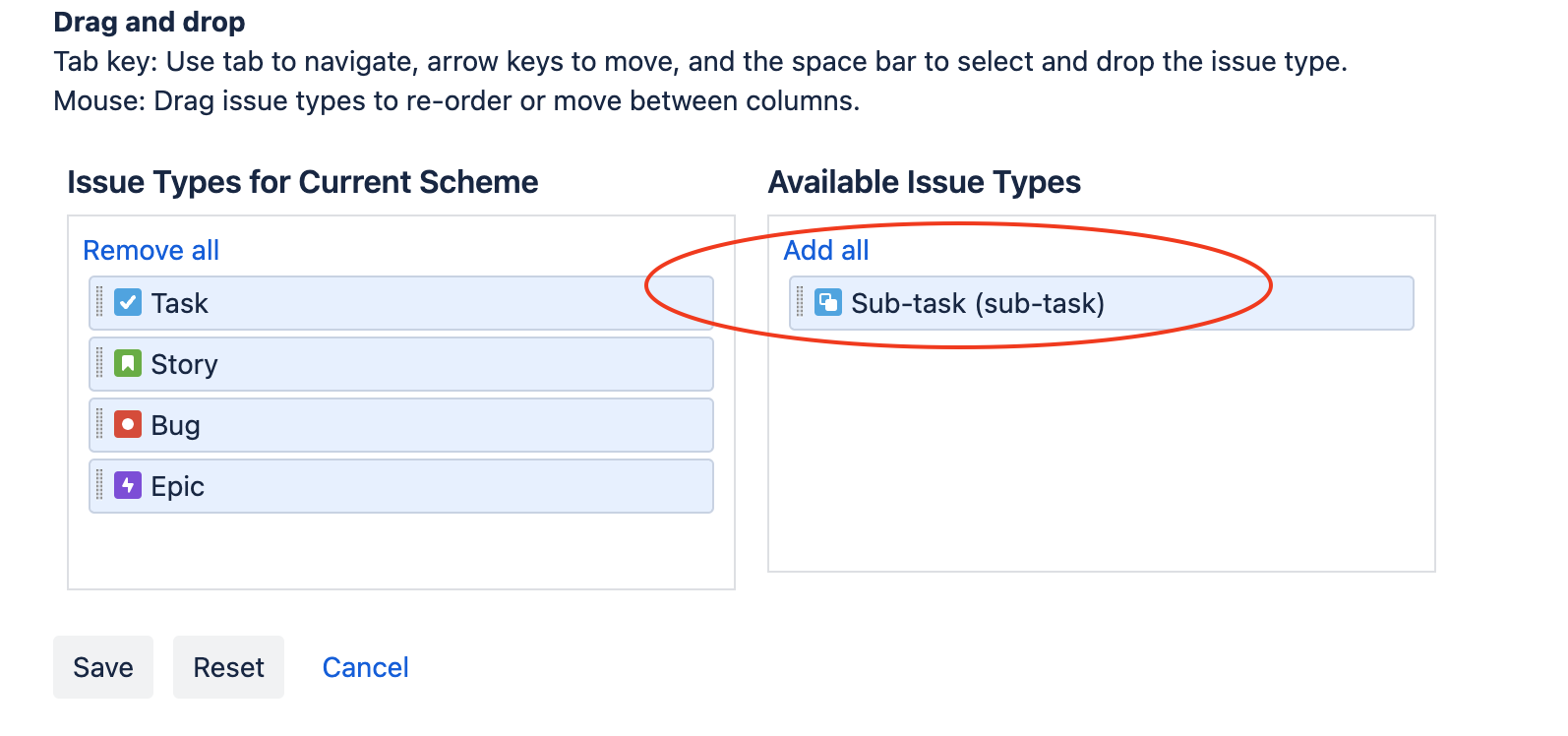
Prevent changing an Issue into a SubTask:
- Go to project settings → Issues → Types
- On Actions drop down, choose Edit Issue Types
- Drag Subtasks into “available issue types” box
Disable adding SubTasks to Issue:
- Go to site admin (https://bci4kids.atlassian.net/jira/settings/issues/issue-types)
- Issues → Sub-tasks
- Press Disable to disable subtasks
Set up Board
The default board is missing a few items:
- Columns
- Add status In Review
- Add column for In Review (this automagically associates with In Review status)
- Add status Cancelled an drag into Done column
- Check off “set resolution” for Cancelled state, this ensures tasks disappear after canceling.
- Swimlanes
- Choose organize by Epic (provides a nicer grouping in Backlog view)
- Quick filters
- Recommend removing. Users often forget the filter is turned on and wonder why they can’t find their Issues.
- Estimation
- Method is story points
- Disable time tracking
Issue Layouts
The Issue layout refers to what fields are displayed when an issue is selected in the backlog or sprint board. The defaults add a bunch of cruft that leads to user confusion, ex: team members that like data start filling in time tracking details… even though there is no process to use that data. I recommend removing hiding these until there’s a reason to have them, ie: let the process drive the tools, not the other way around.
To configure, go to project settings → Issues → Layout (or select “configure” from an issue)
Story and Task
Move
- put story points up into the context fields section (causes it to appear always for user)
Remove
- priority - the priority is where the item lives in the backlog, a second field only confuses users
- time tracking - not used
- original estimate - not needed
- development tools - not used
- team - only one team
Don’t forget to save changes.
Defect
Defects have their own Issue layout. We want this to look the same as Tasks / Stories. Match the order of fields so that things appear in the same place for users (ex: Assignee, Reporter, Story Points). In addition:
Remove
- Environment - not used
- Affects Version - not used
Field Configurations
Our projects are never that large, so we represent the priority of work by it’s position in the backlog. Jira’s “Priority” field appears in a few locations, which is confusing to the team, for example:

To hide it, go to Project Settings → Issues → Fields, then press edit. Find the Priority field and choose “Hide”.