The game will have an option to be played using only the software version of the ramp. This would allow users to “train” at home without the need of the physical ramp.
All game components will be done in world space to allow the camera to “fly” from the menu view to the game view.
The following examples are just a mockup to explain how the different views would work together. The precise size, shape, and position of elements are not yet defined.
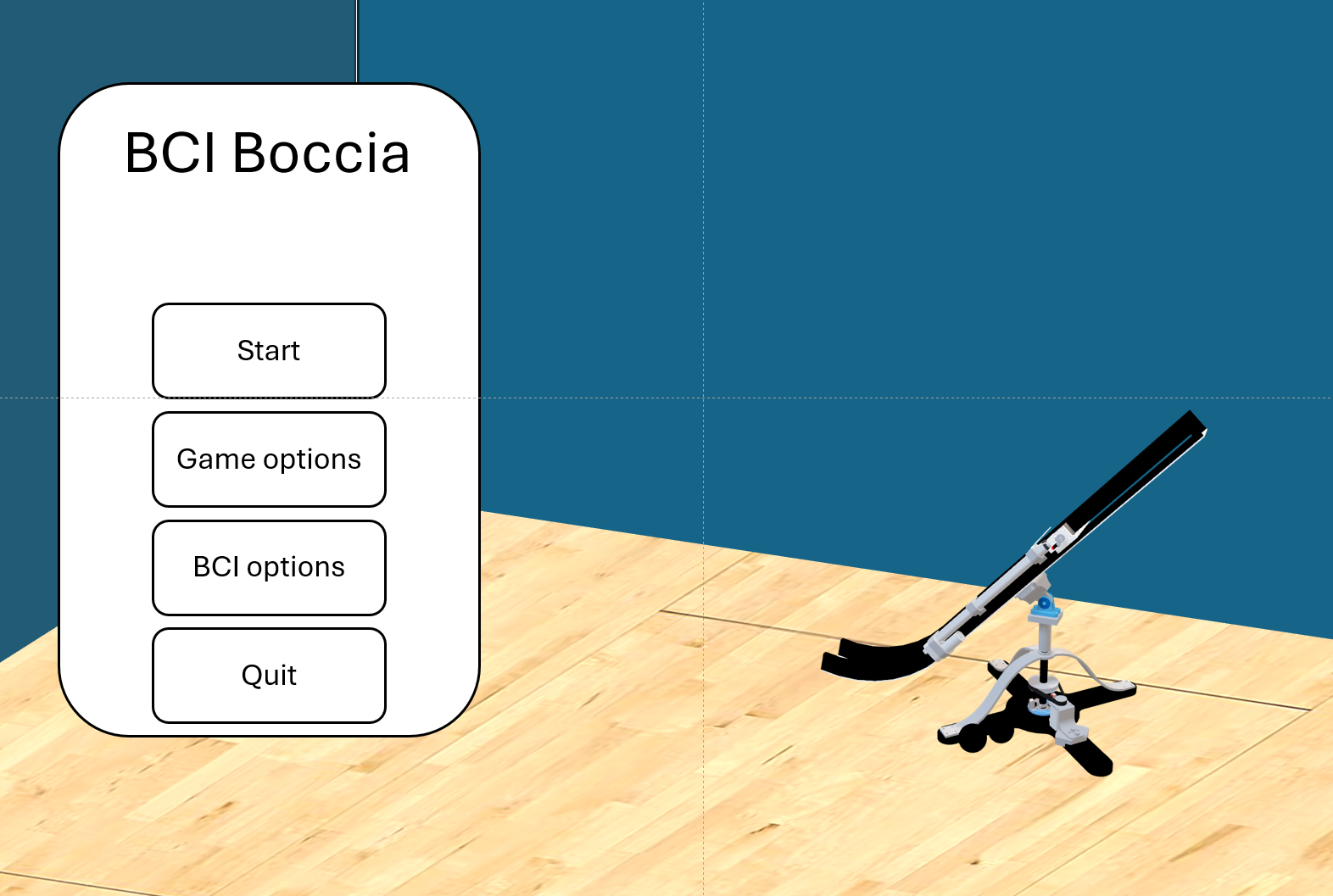
Menus and ramp will exist in world space in two different planes. for reference, the menus will be in a foreground, and the ramp will be in the background (Fig. 1). The panel with the “BCI Boccia” title would change to the “game options” or “BCI options accordingly”.
Fig. 1: Menu view of the Boccia app
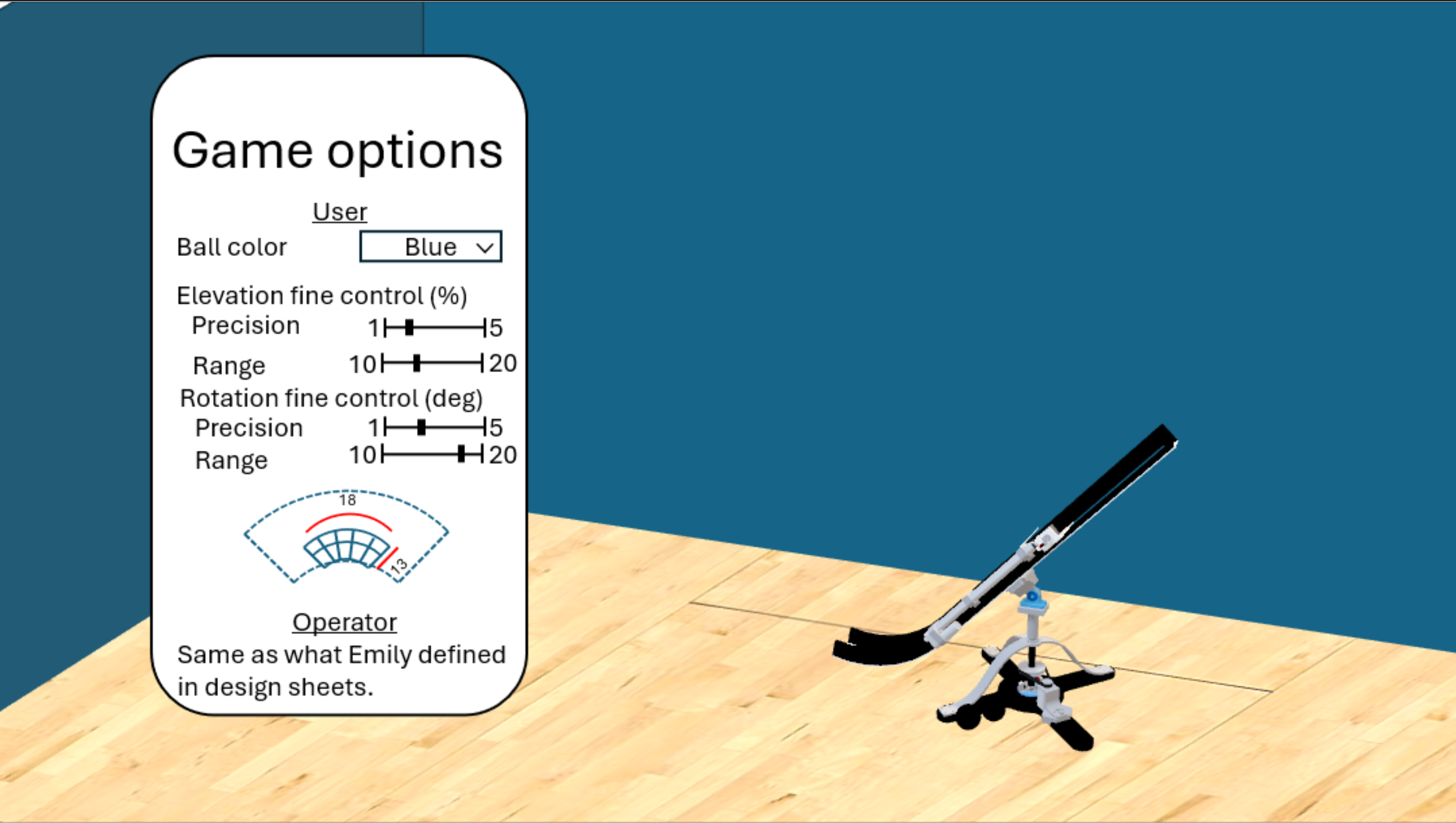
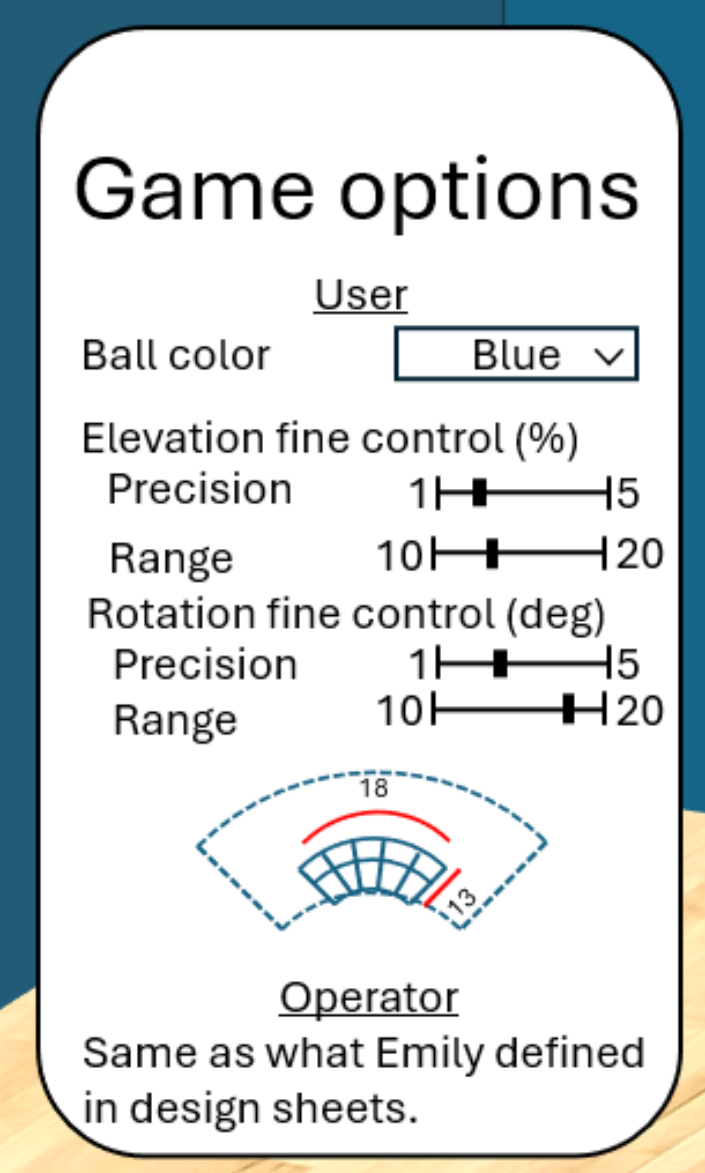
The game options menu is the only one that will get a major change. Here, the precise control options will include a slider to select discrete values (e.g., 1% changes) from a predefined range (Fig. 2). The “operator” section will remain the same as it was in the design documents that Emily put together.
Fig. 2: Game options menu
Note that the rotation and elevation selectors will change the number of SPOs in the X, and Y dimensions of the “fan” selector (Fig. 3). For example, the rotation range (18 deg) divided by the rotation precision (3 deg) would give 6 columns in the fan. Similarly, the elevation range (13%), divided by the elevation precision (2%) would give 6.5 rows. We’ll have to decide how to roundup fractions since we need an integer number for SPOs. If we round down, we would have 6 rotation columns by 6 elevation rows. Thus, 36 SPOs. The dotted fan will have the full-size dimensions, while the solid fan will change its size depending on the elevation and rotation range. The software should have a mechanism so that the number of SPOs of the fine control selector cannot exceed those from the full size selector (i.e., this will be the same size fan that will be used for the training scene).
Fig. 3: Fine control selectors. The precision and range in elevation and rotation will determine the number of APOs available for the fine control selector.
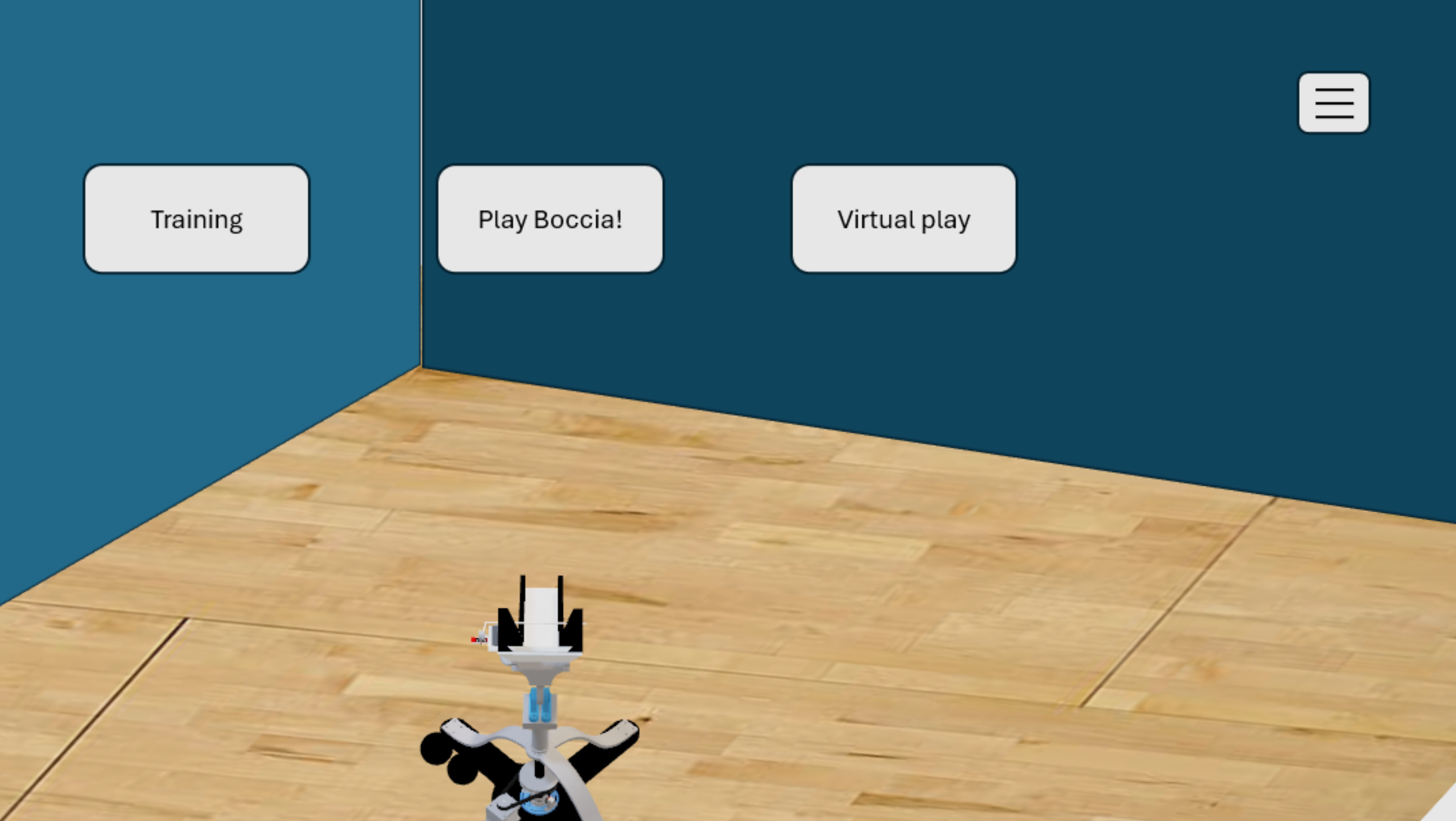
After pressing the start option in the main menu (Fig. 1), the camera will fly to the “play” position (i.e., behind the ramp with a slight inclination downwards). There will be three menus in this screen and a persistent hambuger menu in the top right corner (Fig. 4). The idea is that the ramp is more centered here, but I was not able to do that in the mock up. Only the “training” button should be enabled. After training is done (as explained in the next step), the “Play Boccia!” and “virtual play” buttons are enabled.
Fig. 4: Play view
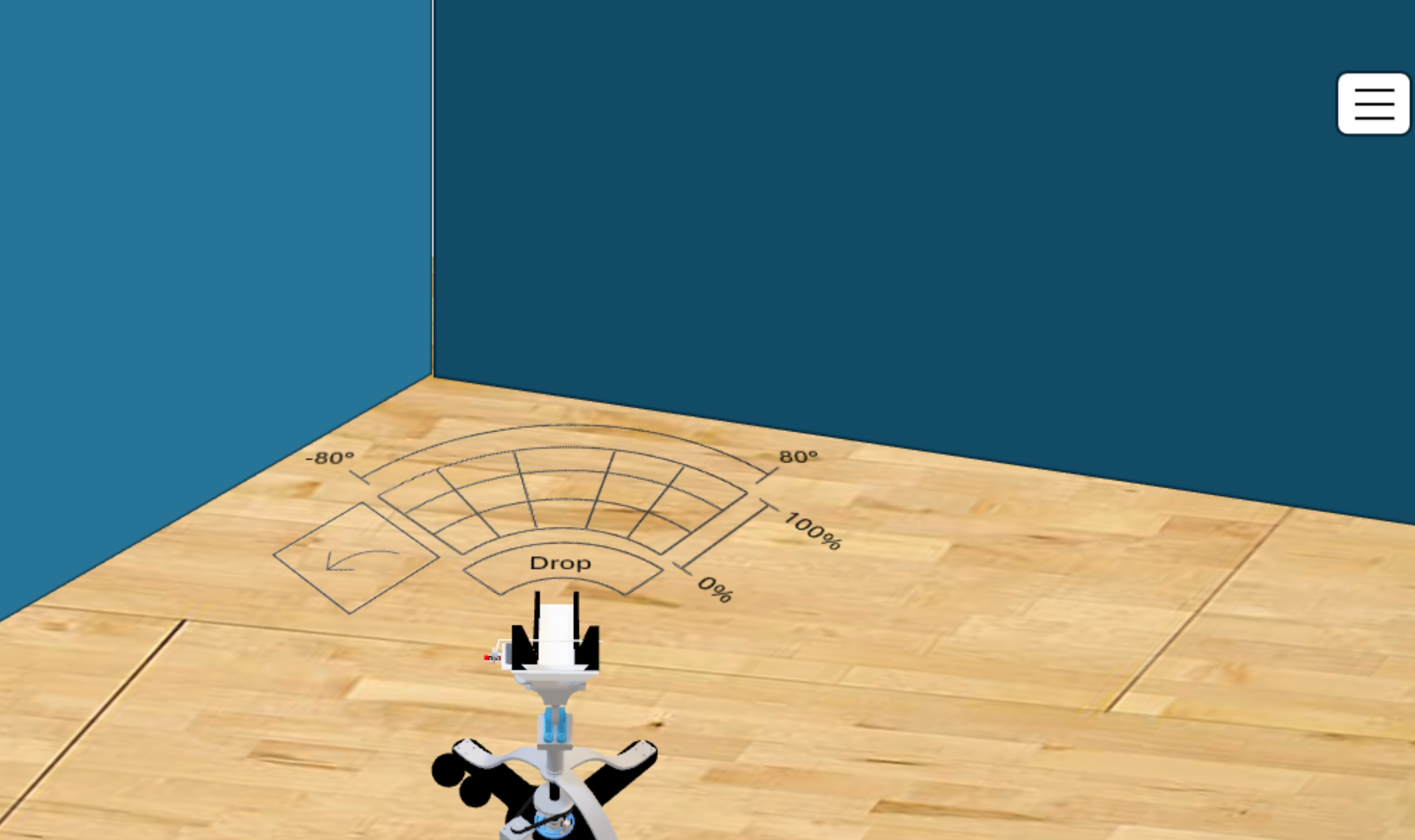
The training scene will display the full fan (Fig. 5.). When pressing the training hotkey, training will begin. The target SPOs will play its corresponding animation (e.g., grow in size), then the P300 flashing will begin. This process will be reapeated num_training_windows times as defined in the BCI options menu. Once training is done, the Play menu will be displayed again with the “Play Boccia!” and “virtual play” buttons enabled(Fig. 4).
Fig. 5: Training view
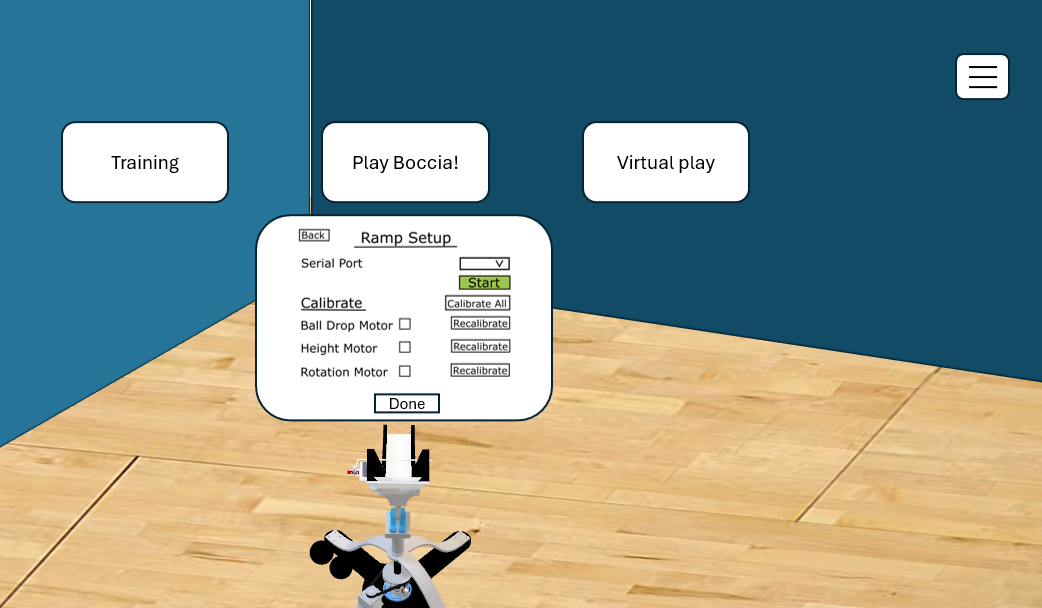
If the “Play Boccia” button is selected, a menu will extend from the “play Boccia” button to show the ramp setup (Fig. 6). This menu will allow the operator connect to the ramp through serial communication and calibrate the motors. If back is selected, we’ll go back to the play view (Fig. 4). If Done is selected, we’ll go to a view like the training view (Fig. 5), the difference is that now there should be no training done, instead the player will be able to control the ramp using BCI.
Fid. 6: Play Boccia ramp setup menu. In this menu the operator will be able to connect to the physical ramp using the serial port, and calibrate the motors of the ramp.
If the virtual play button is pressed we’ll go to a view like the training view (Fig. 5.). The difference is that now there should be no training done. Instead, the player will be able to control the virtual ramp using BCI.
Once operating the ramp with BCI, first the full fan will be shown as in the training view (Fig. 5). After the first selection is done, the fine control fan should be overlaid on top of the full size fan. Here we could keep both fans on screen with a filter so that the bottom fan does not interfere with the top one, or we could have an animation where the selected SPO from the full size fan changes size to match the size of the full size fan. The rotation degrees and elevation percentage values will adjust to match those selected in the game options menu/precise control option.